

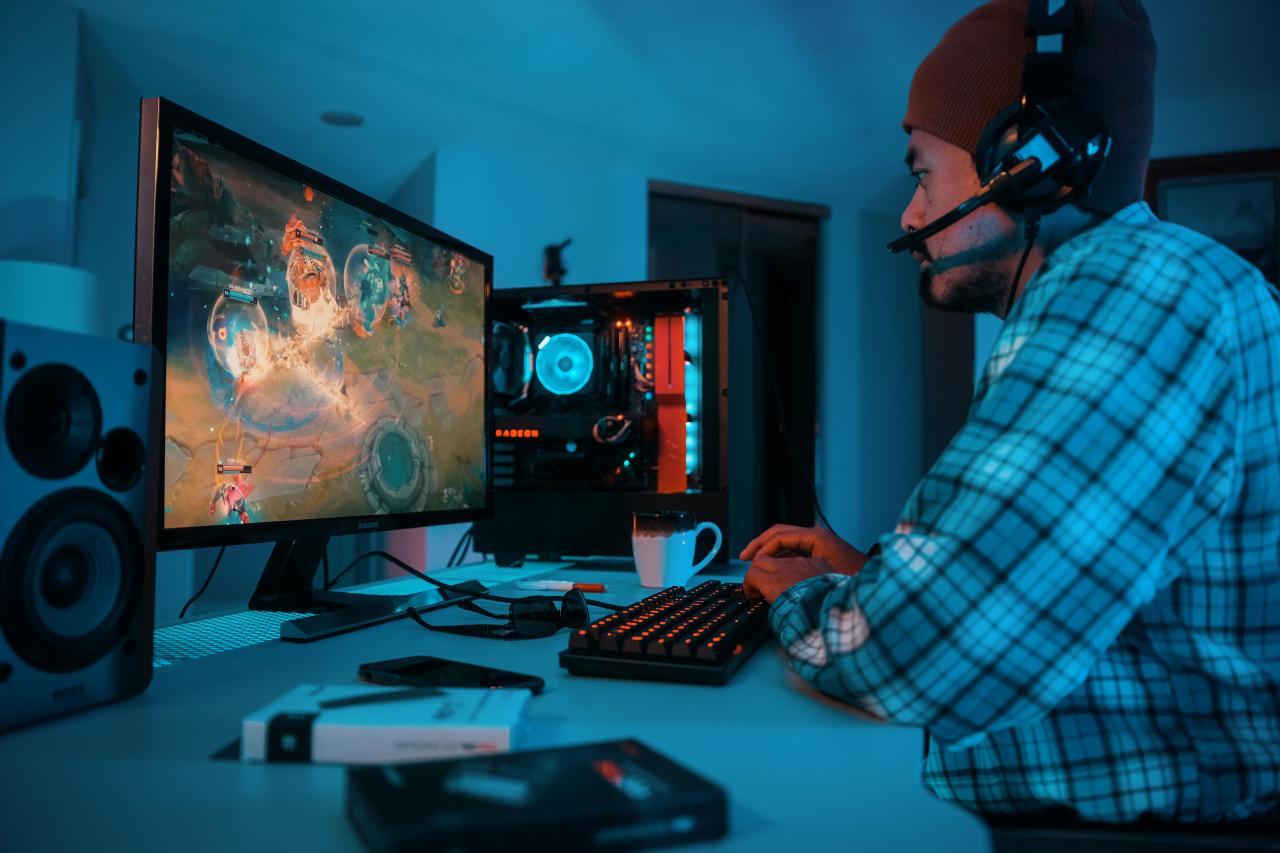
Unlocking ultra-high frame rates functions as the ultimate competitive upgrade for players looking to dominate fast-paced esports matches today. For years, casual gamers believed that basic display settings and standard factory hardware setups were enough to compete at a high level online.
However, running games with unoptimized settings or hidden system bottlenecks creates frustrating micro-stutters, tearing, and noticeable input lag during intense firefights.
These subtle performance delays quietly limit your aiming precision, slow down your visual reaction times, and cause missed shots during critical tournament moments.
Relying on default system configurations exposes your gaming setup to sudden frame drops, high GPU temperatures, and erratic frame delivery when intense action fills your screen.
Fortunately, modern graphics drivers, optimized system settings, and smart hardware tuning allow ambitious gamers to maximize their frame rates effortlessly.
You no longer need to endure sluggish screen responses or unpredictable performance dips while competing against top-tier opponents in ranked lobbies.
Forward-thinking esports competitors and hardware enthusiasts are currently deploying proven system tweaks engineered specifically to eliminate rendering delays and unlock rock-solid frame stability.
Upgrading your software and hardware settings toward these high-performance benchmarks transforms your setup into an exceptionally smooth, ultra-responsive competitive machine early in your journey.
It establishes a reliable, low-latency gaming environment that works continuously to sharpen your target tracking, clarify visual details, and guarantee flawless frame delivery across every gaming session.
A. Adjust In Game Visual Settings To Unleash Maximum Frame Output
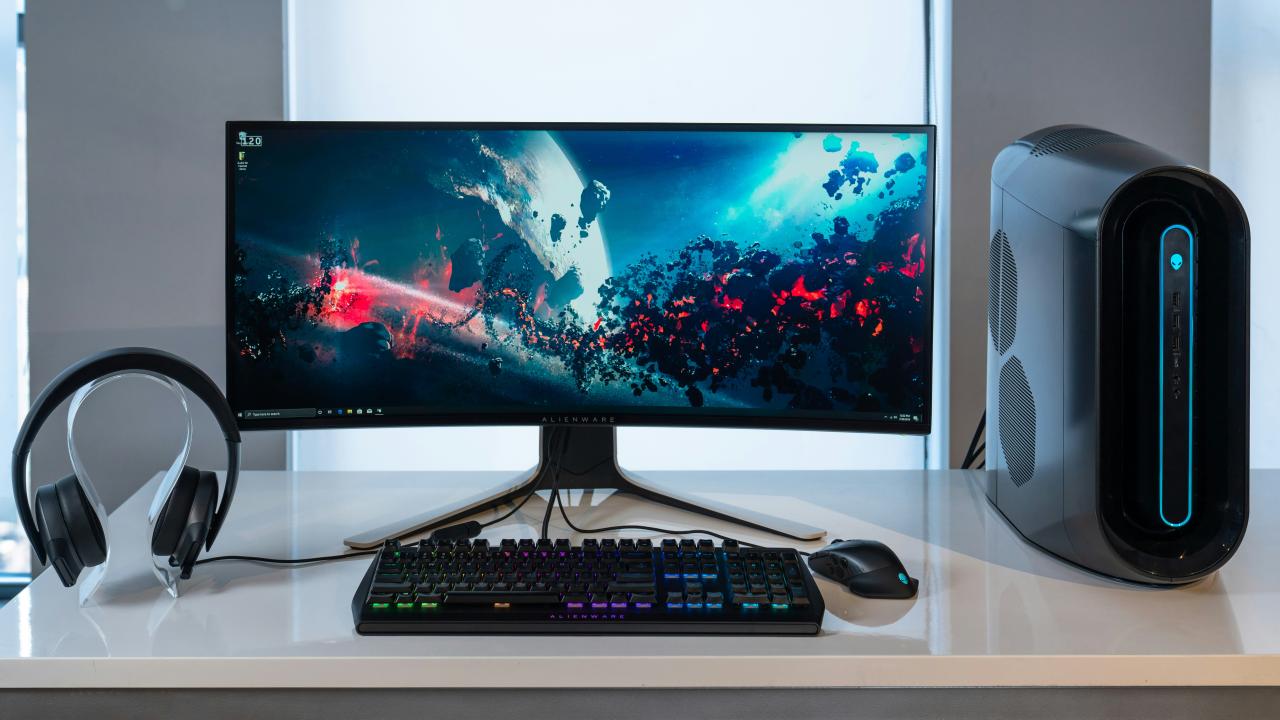
Lowering demanding graphical effects like dynamic shadows, screen-space reflections, and motion blur instantly frees up massive processing power for your graphics card.
High cinematic settings might make game environments look realistic, but they create heavy rendering workloads that severely reduce your total frame output per second.
Competitive players prioritize visual clarity and high motion fluidity over decorative environmental textures during fast-paced matches. Disabling unnecessary visual clutter allows your graphics card to render fresh frames rapidly, giving you a distinct visual advantage during swift camera pans.
From my perspective, you can easily double your frame output by setting visual textures to medium while completely turning off motion blur and depth of field.
Choosing competitive performance settings over heavy cinematic visuals gives your graphics processing unit total freedom to render frames as fast as possible.
This practical in-game adjustment solves your frame rate limits completely, delivering a perfect balance of crisp character visibility and lightning-fast frame delivery for your matches.
It guarantees that enemy player models stand out clearly against background scenery without suffering from distracting motion blur or rendering stutters.
B. Configure Graphics Driver Control Panels To Lower System Input Latency
Optimizing your graphics card control panel settings unlocks extra frame stability and reduces total input latency at the system level. Default driver configurations often favor energy efficiency or visual quality over raw rendering speed, introducing subtle display delays before frames reach your screen.
Enabling low-latency driver modes, setting power management to maximum performance, and locking maximum pre-rendered frames to one eliminates these internal software delays.
This targeted driver tuning ensures your system processes player inputs immediately, delivering rapid screen updates that match your exact physical hand movements.
I observe that you can smoothly resolve this software rendering delay by setting your graphics driver power management mode to prefer maximum performance.
Selecting low-latency driver modes saves your rendering pipeline from queuing up extra frames in system memory before displaying them on screen.
This strategic software configuration solves your input lag challenges perfectly, giving your monitor an immediate stream of fresh visual data every single millisecond. It ensures that your game responds instantly to your mouse clicks without introducing heavy visual tearing or unpredictable rendering delays.
C. Enable High Refresh Rates And Adaptive Sync To Eliminate Screen Tearing
Configuring your display adapter properties to run at your monitor’s maximum supported refresh rate allows you to experience buttery-smooth motion clarity during intense gameplay.
Many players buy expensive high-refresh-rate monitors but accidentally leave their operating system display settings set to standard low-refresh defaults.
Enabling your display’s highest refresh rate alongside modern adaptive sync technology ensures that every frame rendered by your graphics card displays smoothly without screen tearing.
This visual fluidness eliminates distracting screen tears, allowing your eyes to track fast-moving targets effortlessly across your screen.
Competitive players often miss out on smooth gameplay because they forget to manually enable high refresh rates inside their operating system display settings.
The truth is that opening your advanced display settings and selecting your monitor’s highest refresh rate transforms your visual tracking ability instantly. Pairing high display refresh rates with adaptive sync features saves your eyes from straining to track fast-moving character hitboxes during quick turns.
This visual setup solves your screen tearing worries beautifully, turning choppy camera motion into crisp, actionable visual information for your brain. It delivers an exceptional combination of visual smoothness and fast response times, allowing you to track evasive targets with total accuracy.
D. Optimize Windows Operating System Performance Settings For Uninterrupted Gaming
Disabling background apps, disabling visual desktop effects, and enabling dedicated gaming modes inside your operating system ensures your hardware focuses entirely on running your game.
Background software updates, web browsers, and unnecessary system services consume valuable CPU cycles and system memory while you play.
Turning on built-in OS game modes prioritizes system resources directly to your active game title, preventing sudden performance drops caused by background tasks.
This clean operating system environment keeps your CPU frame times consistently low, protecting your gameplay from unexpected micro-stutters during high-stakes duels.
I believe that turning on dedicated OS game modes and closing heavy background applications before launching matches solves these random stutters completely. Reserving your CPU and memory capacity strictly for game processing saves your hardware from switching tasks during intense firefights.
This operating system cleanup solves your frame stability problems beautifully, delivering rock-solid frame time consistency when heavy action fills your display. It provides the ultimate blend of system efficiency and reliable frame output, allowing your PC to maintain peak performance under heavy loads.
E. Monitor System Temperatures To Prevent Severe Thermal Throttling Drops
Keeping your CPU and GPU operating within safe temperature limits prevents thermal throttling features from automatically lowering your hardware clock speeds during long gaming sessions.
Accumulation of dust, poor PC case airflow, or aging thermal paste causes internal heat to rise rapidly during extended practice sessions. Once components hit thermal limits, automatic safety protocols drop clock speeds instantly to prevent heat damage, causing severe, sudden frame rate drops.
Cleaning internal case dust and customizing fan curves ensures efficient heat removal, keeping your hardware running at maximum speeds indefinitely.
You can easily prevent thermal throttling drops by setting aggressive fan curves inside your system hardware monitoring software before launching your game. Customizing your case fan speeds to ramp up early keeps your internal components cool long before thermal safety limits trigger performance cuts.
This practical thermal management solves your system heat challenges completely, turning hot hardware setups into cool, highly efficient gaming platforms. It delivers an essential thermal foundation that allows your hardware to maintain ultra-high frame rates continuously without risking system instability.
Conclusion
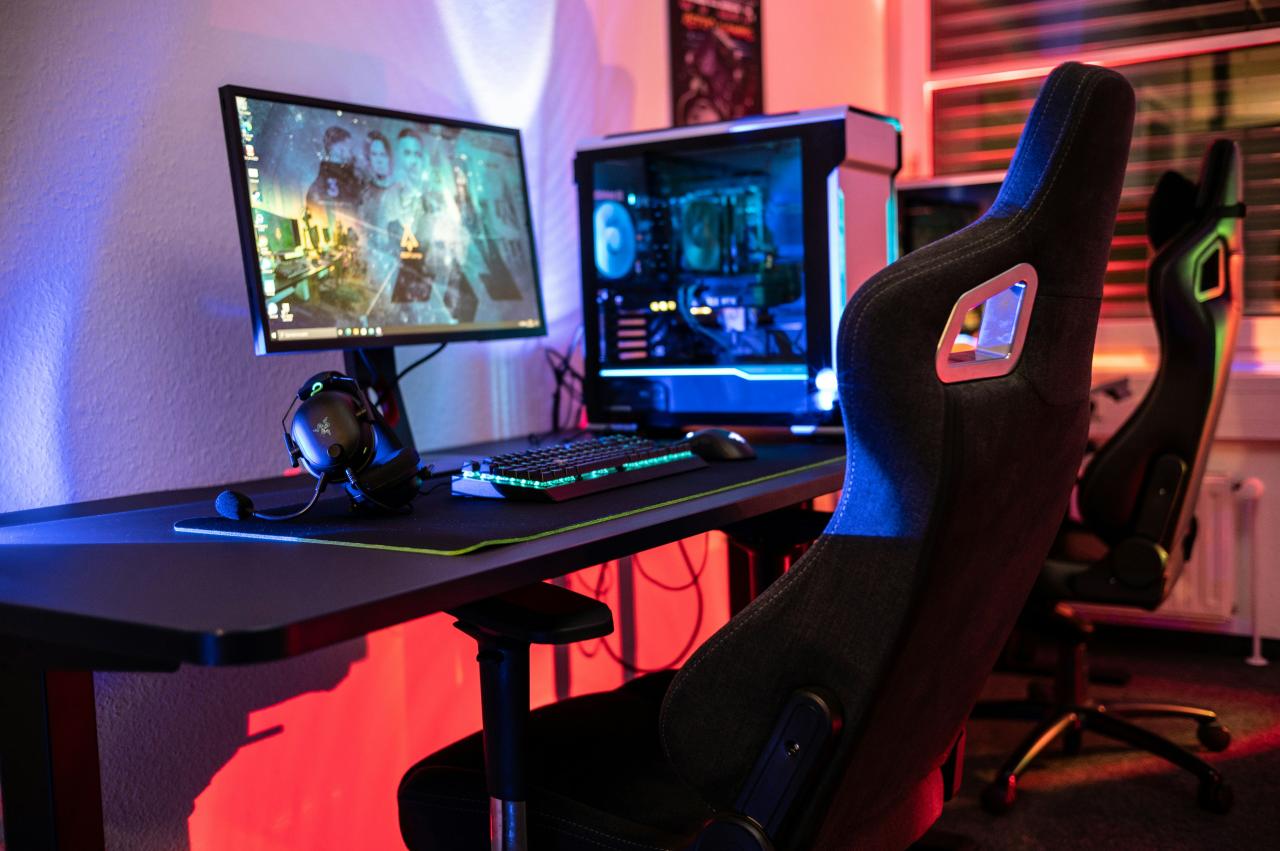
Maximizing your frame rates provides the ultimate foundation for dominating online esports today. This proactive optimization strategy removes the old limitations of default setups by introducing high-performance system tweaks.
You can build an exceptionally smooth and responsive gaming experience with total confidence by targeting these performance upgrades. Adjusting in-game visual settings eliminates the traditional rendering bottlenecks that usually keep busy gamers feeling constantly frustrated.
Continuous visual clarity guarantees that your frame rates remain remarkably high, stable, and predictable always. Trust these low visual settings to keep your frame output fast while unlocking flawless motion clarity daily.
Configuring graphics driver control panels unlocks excellent software responsiveness by rendering fresh frames without introducing system input lag. Automated low-latency driver settings guarantee that your visual output remains completely sharp, fast, and consistent always.
This smart driver path increases your visual reaction speed without requiring low-resolution compromises or choppy visual tearing. Enabling high refresh rates and adaptive sync solves the frustrating chore of dealing with choppy display motion and visual tears manually.
Clear display configuration parameters automatically maximize your visual tracking speeds while keeping your motion clarity remarkably smooth. Optimize your operating system performance settings to gain superior frame time stability that turns random stutter into consistent gaming performance.
Monitoring system temperatures completely eliminates the severe thermal throttling drops associated with high internal hardware heat.

